AI Estimating Software for Joinery Workshops
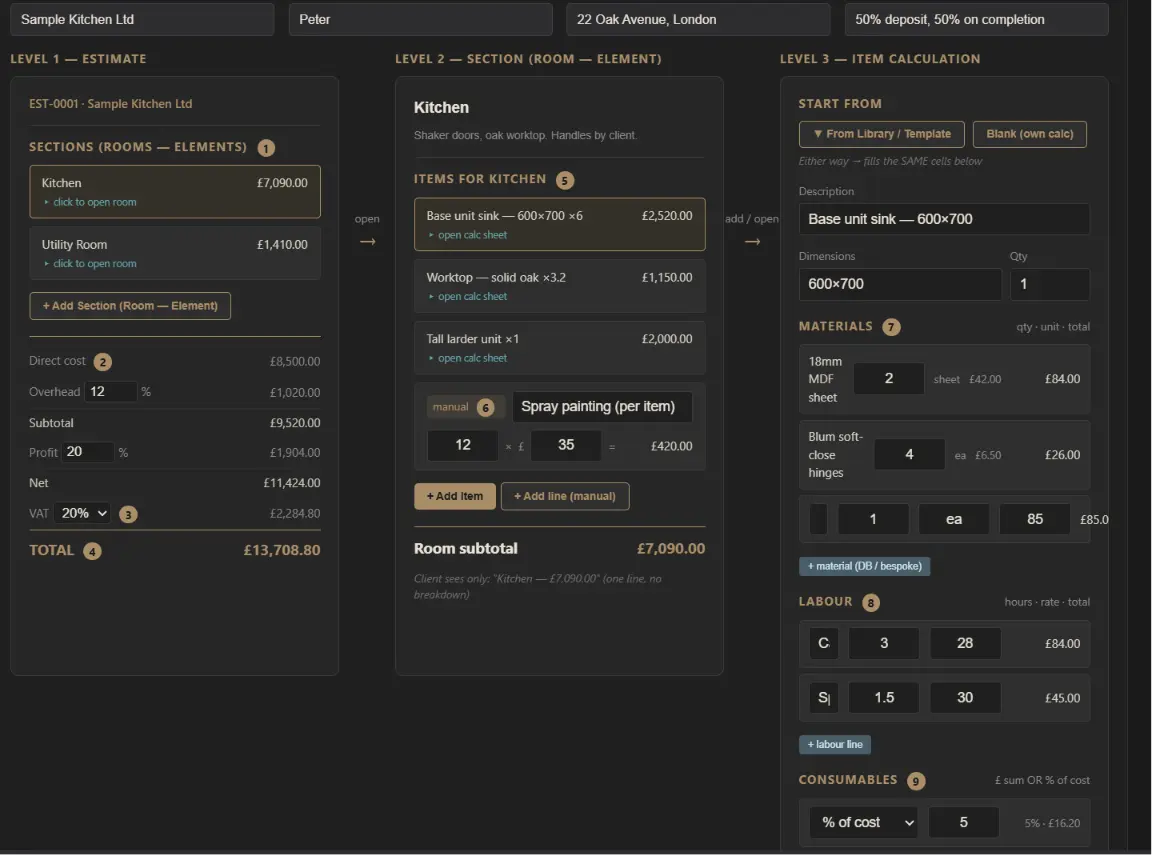
A client sends you a PDF — an enquiry email, a furniture schedule, a room-by-room brief, sometimes a set of drawings. Before you can even think about price, you have to read it all, type every item into your estimate, work out which room each piece belongs to, and copy across the dimensions and quantities. For a big enquiry that is an hour of typing before any real estimating begins.
An AI estimate assistant removes the typing, not your judgement. It reads the PDF, pulls out the rooms, items, dimensions and quantities, and hands you a draft estimate to work from. You stay in charge of every price. This page explains exactly what the AI does, what it deliberately does not do, and where it fits in a real quoting workflow.
What an AI Estimate Assistant Actually Does
Inside Joinery Core, the AI estimate assistant works in three plain steps — and it never skips your approval.
1. It Reads the Document
You attach a client's PDF and the assistant reads the whole thing. It groups what it finds by room or area, and for each piece it lists the description, the dimensions, and the quantity wherever the document gives them. A "Bedroom 1" section with an L-shape wardrobe, two bedside cabinets and a set of drawers comes back as exactly that — structured, not a wall of text.
2. It Summarises Before It Builds
The assistant does not dump a finished estimate on you. It first tells you what it understood and asks about anything unclear — a missing dimension, an ambiguous quantity, a drawing label it could not read with confidence. You correct it in plain words ("that's a larder, not a cabinet", "the run is 2400 not 1400"), and only when you say go ahead does it build the draft.
3. It Builds a Draft Estimate
On your approval it creates the estimate structure — sections for each room, lines for each item with quantities. From there you are in the normal Joinery Core estimate editor: adjust anything, add your prices, apply your margins and VAT, and produce the client PDF.
You Stay in Control of Every Price
This is the part that matters most, and where honest software earns trust. The assistant does not magic prices out of nowhere.
- Prices come from you. A line is priced only from your own Pricing guide, a price printed in the client's document, or a price you tell it. If an item has no price, it stays at zero — it will not guess.
- Anything it works out is flagged. When you ask it to price from your Pricing guide, every figure it derives is shown in yellow as "suggested" so you can check it before it goes anywhere near a client.
- Nothing saves on its own. The assistant proposes; you review and choose Add or Replace, then press Save. You always see what changed first.
What It Is Not
Being clear about the limits is more useful than overselling. The AI estimate assistant is a quoting helper, not a design tool and not an autopilot.
- It is not CAD, 3D, a cut-list generator or CNC software. It does not design your units or produce machining files — keep the design tools you already use.
- It does not price a job "automatically" with no input from you. Your rates and your Pricing guide drive every number.
- It is an assistant: it reads, structures and suggests. The estimate that goes to your client is the one you approved.
What the assistant reads from a client's PDF
- Rooms and areas — so the estimate is grouped the way the job actually breaks down
- Item descriptions — wardrobes, units, doors, worktops, staircases, whatever is listed
- Dimensions — taken off the document where stated (and flagged as provisional from a drawing)
- Quantities — how many of each item
- Any prices printed in the document itself
How It Fits Your Quoting Workflow
The assistant handles the slow, mechanical start of an estimate so you can spend your time on the part that needs experience — pricing and margins.
A typical flow: attach the client's PDF, let the assistant read it and propose the rooms and items, correct anything it misread, then build the draft. Now you apply your own prices (or pull suggestions from your Pricing guide), set your overhead and profit, add VAT, and export a clean, branded PDF to send. The estimate then lives in the same system as your production schedule, stock and job costing — so when the client accepts, nothing has to be re-typed.
Why "Built by a Workshop, Not a Software Company" Matters
Joinery Core is built by a workshop owner who runs a real joinery business (Skylon Joinery), with development by his son Alex. That background is the reason the AI assistant behaves the way a careful estimator would — summarise first, ask about the unclear bits, never invent a price — rather than the way a generic "AI quote generator" would. The tool was shaped by people who know what happens when a quote is wrong: the workshop pays for it for months.
Three Ways to Build an Estimate
The AI assistant is one of three ways to put a quote together in Joinery Core — pick whichever suits the job in front of you.
- Quick Quote — fast and price-led: add sections (rooms) and line items with a price each. Best when you already know your numbers. The AI assistant is available here too.
- Detailed Costing — build each item up from real materials and labour so you see the true cost behind the client price. Best for accurate, made-to-measure work.
- AI Estimate from PDF — the new one: hand the assistant a client's PDF and it builds the draft structure, ready for you to price.
All three finish the same way — your sections and items, your margins and VAT, and a clean client PDF.
Step by Step: Building an Estimate From a PDF
Here is the whole flow, and notice where your approval sits.
1. Start an "AI Estimate from PDF"
In the Estimates module, pick the AI Estimate from PDF type. The estimate editor opens with a "Source documents" strip across the top.
2. Add the client's files
Click "+ Add files" and attach the PDF — an enquiry, a furniture or cutting schedule, a room-by-room brief, or a drawing set. You can add more than one.
3. Analyse the documents
Press "Analyze documents". The assistant reads everything and replies with what it found — grouped by room, each item with its dimensions and quantity where the document gives them — plus any questions about parts it could not read with confidence.
4. Correct and confirm
Reply in plain words to fix anything ("that's a larder, not a cabinet", "the run is 2400"). When it looks right, tell it to go ahead.
5. Create the estimate
Use "Create estimate from this plan" and the assistant builds the sections and lines on the estimate. From there it is yours — add prices, set margins and VAT, and export the client PDF.
Teach the AI Your Prices
The assistant only knows your prices if you give them to it — and the Pricing guide is where you do that. On the Pricing guide tab you write how you price in plain words ("standard wardrobe 700 per m², shaker front +100 per m², internal drawer 150"), however rough.
Click "Add & tidy up with AI" and it reorganises your notes into clean, grouped rules without changing a single figure — and you can add your own instructions, such as "group everything by room". After that, whenever you ask the assistant to price an estimate it works the numbers out from your guide and shows each one in yellow as "suggested" for you to confirm. It prices from your rules and nothing else.
Attach Drawings and Visuals
Every section of an estimate has a "+ Drawing / visual" button. As well as photos it accepts PDF drawings — a multi-page PDF comes in as one image per page, so a client's drawing shows on screen and prints inside the estimate PDF like any other visual.
Frequently Asked Questions
Does the AI replace my estimating judgement?
No. It removes the data entry — reading the document and structuring it — and leaves the pricing decisions with you. Think of it as a fast assistant who types up the enquiry for you, not someone who decides what the job is worth.
What file types can it read?
PDF documents — enquiry emails, furniture or cutting schedules, room-by-room briefs and drawings exported as PDF. It can handle multi-page documents, so a several-page drawing set is fine.
Does it need my prices to work?
To structure the estimate, no — it will pull out rooms, items, dimensions and quantities on its own. To price the estimate, yes — it uses your Pricing guide or prices you provide, and marks anything it works out as "suggested" for you to confirm.
Is my client's PDF stored anywhere?
The document is read to build the estimate; the assistant keeps a text record of the conversation rather than storing the raw file, which keeps client documents private and the system lean.
Is this a separate product?
No. The AI estimate assistant is part of Joinery Core's estimating module, alongside quote tracking, templates, job costing and production scheduling — one system, not a bolt-on.
Can I still build estimates by hand?
Yes. The AI is optional — Quick Quote and Detailed Costing work exactly as before. Use the assistant when a document would save you typing, and build manually whenever you prefer.
AI in the workshop, not just the office
Estimating is one half; the other is keeping machines running. Joinery Core's newest assistant reads the PDF manuals you upload to your machines and answers servicing questions with page citations, from blade changes to troubleshooting a strange noise. See how the AI machine assistant works →
Turn a client's PDF into a draft estimate
Let the AI estimate assistant read the enquiry and build the structure — you set every price. 14-day free trial, no card.